invitations
How to Make a Digital Birthday Invitation in 5 Minutes (Step-by-Step)
Published 23 June 2026

Whether it's a first birthday, a kids' party or a milestone 50th, a digital birthday invitation is the fastest way to look organised and excite guests at the same time. Here's how to make one that actually gets opened.
Step 1 — Pick your theme first, not your template
Most people start by scrolling templates. Don't. Start with the vibe: rainbow kids' party, elegant 30th dinner, vintage 60th brunch. Pinning down the vibe in one line — "rainbow chaos with cake" or "champagne and candles" — makes every other choice ten times faster.
Step 2 — Gather the essentials in one place
Before you open any builder, have these ready:
- One hero photo of the birthday person (high-res, well-lit)
- Date, start time and end time
- Venue name + Google Maps link
- Dress code or theme note (one line)
- RSVP deadline
- Any gift guidance ("no gifts", "books only", registry link)
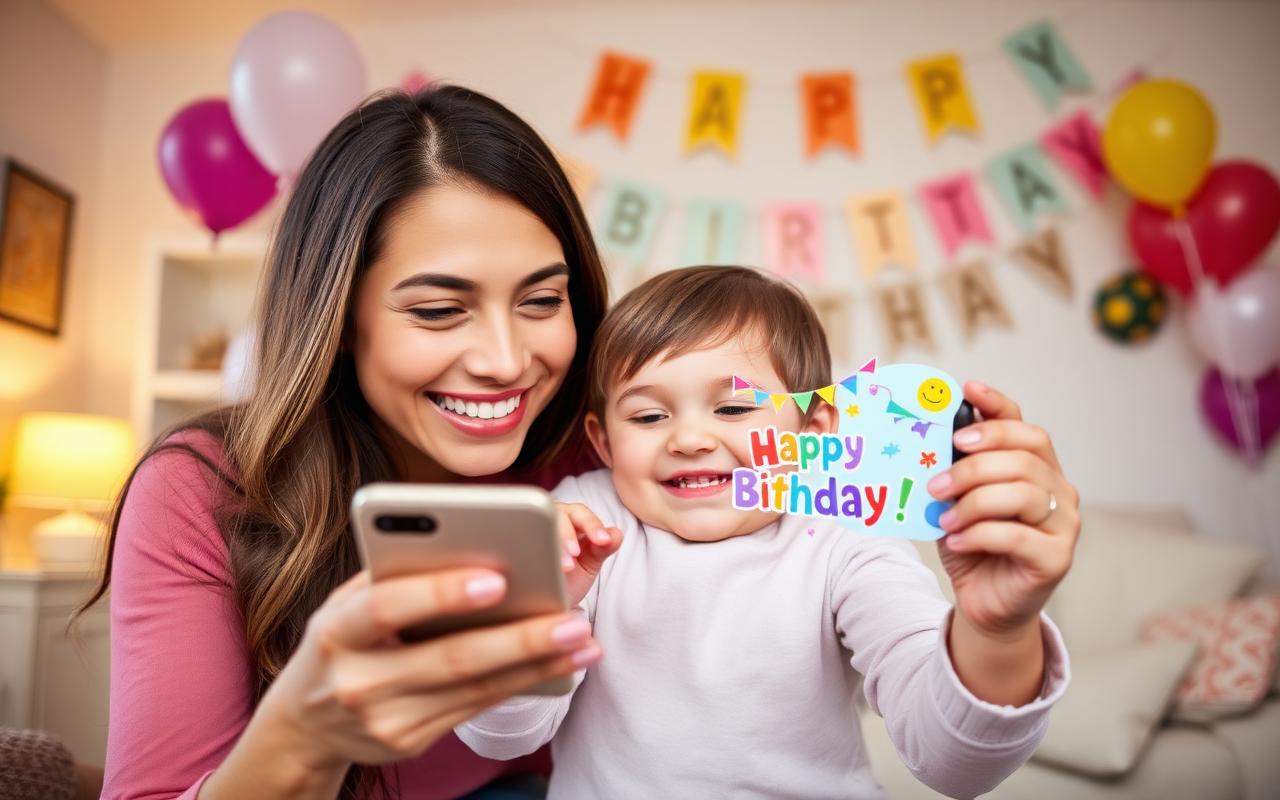
Step 3 — Open a builder and load the theme
Head to Celebrate Magic Moments's digital invitation builder and select your occasion. The builder will pre-fill animations, colours and fonts so you're not staring at a blank canvas.
Step 4 — Upload the hero photo
One strong photo beats five mediocre ones. Crop tight on the birthday star's face. Avoid screenshots — use the original camera roll image so resolution stays crisp on every phone.
Step 5 — Add the magic touches
This is what makes guests actually open the invite instead of swiping past:
- A personalised song with the birthday person's name (free with our deluxe pack)
- Live countdown ticking down to the party
- Background music or jingle matched to the theme
- Photo carousel of past birthdays (great for milestone parties)
Step 6 — Turn on RSVP tracking
This is the silent superpower. Enable RSVP and you'll see exactly who's coming, who's bringing a +1, dietary needs and a running headcount. No spreadsheets, no chasing.
Step 7 — Preview on your own phone first
Always open the preview link on the device your guests will use — a phone, not a laptop. Check spelling, the venue link, the playback of music, and the brightness of the hero photo.
Step 8 — Send the link
Drop the link straight into your group chat. WhatsApp, iMessage and Messenger all generate a nice preview card with your cover image and title. For older relatives, send by email or SMS.
Bonus: timing
For kids' parties send 3 weeks ahead. For adult milestones send 4–6 weeks ahead, with a nudge one week before.

Frequently Asked Questions
How long does it take to make a digital birthday invitation?
About 5–10 minutes once you have your photo and party details ready. Most of the design work is pre-built into the templates.
Can I add background music to a birthday invitation?
Yes. You can pick a jingle from the library or add a personalised song with the birthday person's name in it.
What's the best way to send the invitation?
Share the link in your group chat (WhatsApp, iMessage, Messenger). It generates a preview card automatically. For older relatives, send by email or SMS.
How far in advance should I send a birthday invitation?
Three weeks for kids' parties, four to six weeks for milestone adult birthdays, with a gentle reminder one week before.
Do digital birthday invitations work for kids' parties?
Brilliantly. Parents prefer them because the venue address and RSVP are one tap away on the same phone they're already holding.